
How to Self-Host OpenClaw on a VPS — Complete Setup Guide
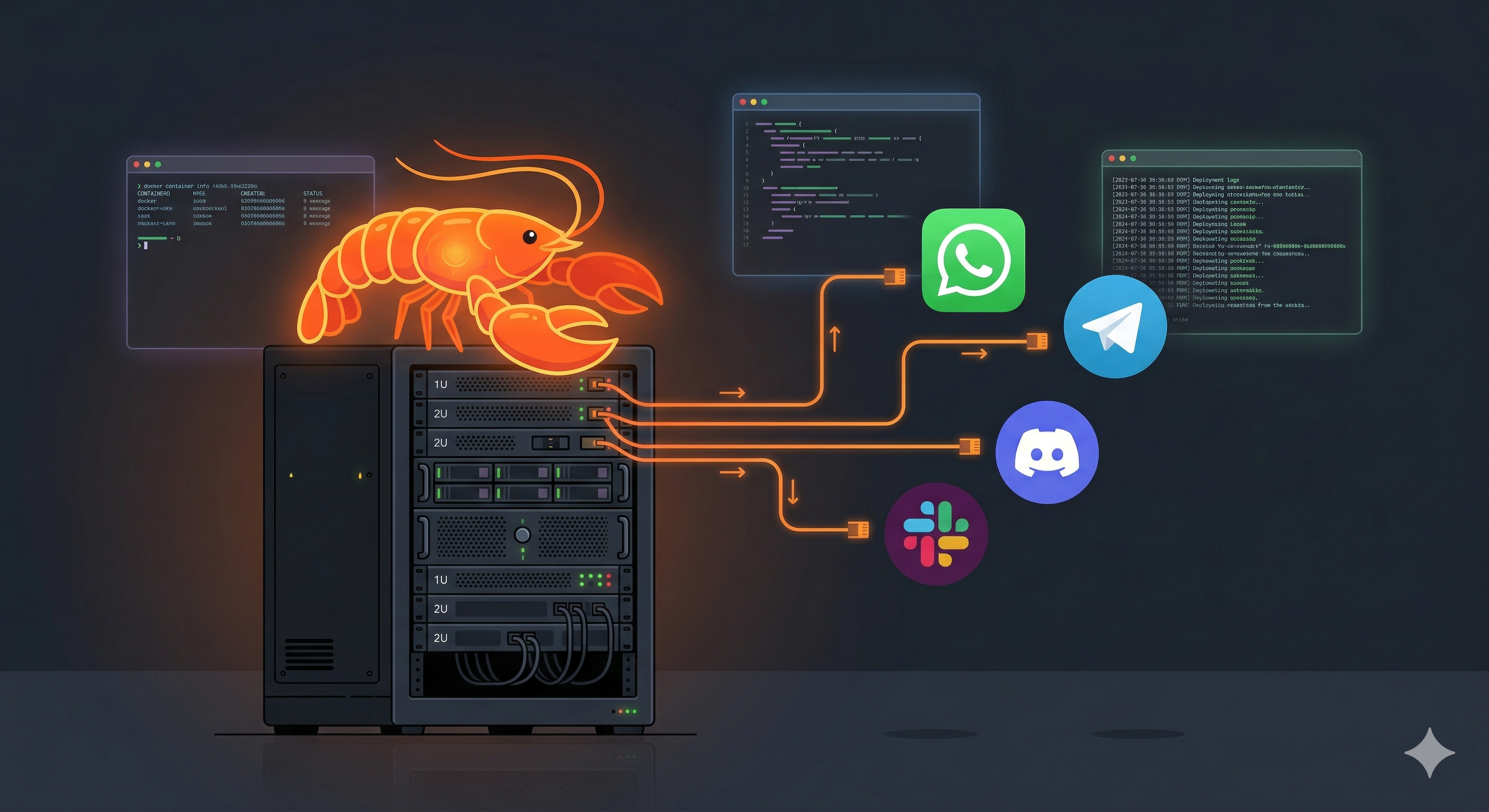
I wrote about OpenClaw taking over the internet back in February. Since then, it has crossed 340K GitHub stars and the self-hosting community has figured out the best ways to deploy it on cheap VPS instances. I have been running my own OpenClaw instance on a $6/month VPS for the past month, and it works surprisingly well.
This guide walks you through the entire setup — from spinning up a VPS to having OpenClaw running with Ollama for local inference, secured behind Nginx with SSL. No cloud AI API keys required.
Why Self-Host OpenClaw?
Running OpenClaw on your local machine works fine, but a VPS gives you three things:
- Always-on availability — Your AI agent is reachable 24/7 from any device. Send a WhatsApp message from your phone at 3 AM and get a response.
- No laptop dependency — Close your MacBook, your agent keeps running.
- Isolated environment — Security is OpenClaw’s biggest weakness. Running it on a dedicated VPS means a compromised agent cannot touch your personal files.
What You Need
| Component | Minimum | Recommended |
|---|---|---|
| CPU | 2 cores | 4+ cores (ARM works great) |
| RAM | 2 GB (gateway only) | 8-16 GB (with Ollama) |
| Storage | 10 GB | 50-100 GB (for model weights) |
| OS | Ubuntu 22.04+ | Ubuntu 24.04 LTS |
| Domain | Optional | Recommended for SSL |
Cost breakdown:
- DigitalOcean / Hetzner / Vultr: $6-12/month for a 4GB RAM droplet
- Oracle Cloud Free Tier: $0/month — 4 ARM cores, 24 GB RAM, 200 GB storage (seriously, this is the best deal in cloud computing)
If you want to run local models with Ollama, go with at least 8 GB RAM. If you plan to use an external API like Claude or GPT-4 as the backend, 2 GB is enough for the gateway.
Step 1 — Initial Server Setup
SSH into your fresh VPS and lock it down first. Do not skip this — OpenClaw with shell access on an unsecured server is asking for trouble.
1
2
3
4
5
6
7
8
9
# Update system
sudo apt update && sudo apt upgrade -y

# Create a dedicated user (never run OpenClaw as root)
sudo adduser openclaw
sudo usermod -aG sudo openclaw

# Switch to the new user
su - openclaw
Firewall Configuration
1
2
3
4
5
6
7
8
# Allow only SSH, HTTP, and HTTPS
sudo ufw allow OpenSSH
sudo ufw allow 80/tcp
sudo ufw allow 443/tcp
sudo ufw enable

# Verify — you should see only 22, 80, 443
sudo ufw status
SSH Hardening
Edit /etc/ssh/sshd_config:
1
sudo nano /etc/ssh/sshd_config
Set these values:
1
2
3
PermitRootLogin no
PasswordAuthentication no
PubkeyAuthentication yes
Make sure you have your SSH key added to ~/.ssh/authorized_keys before disabling password auth, or you will lock yourself out.
1
sudo systemctl restart sshd
Install Fail2Ban
1
2
3
sudo apt install fail2ban -y
sudo systemctl enable fail2ban
sudo systemctl start fail2ban
Step 2 — Install Docker
Docker is the cleanest way to run OpenClaw on a VPS. No Node.js version conflicts, easy updates, simple cleanup.
1
2
3
4
5
6
7
8
9
10
11
12
13
14
# Install Docker
curl -fsSL https://get.docker.com -o get-docker.sh
sudo sh get-docker.sh

# Add your user to the docker group
sudo usermod -aG docker openclaw
newgrp docker

# Install Docker Compose plugin
sudo apt install docker-compose-plugin -y

# Verify
docker --version
docker compose version
Step 3 — Install Ollama (Optional but Recommended)
If you want to run local models — no API keys, no external calls, completely private — install Ollama.
1
2
3
4
5
6
7
curl -fsSL https://ollama.com/install.sh | sh

# Pull a model — Llama 3.1 8B is the sweet spot for most VPS setups
ollama pull llama3.1:8b

# For lower-RAM servers, use the 3B variant
# ollama pull llama3.2:3b
Model Recommendations by RAM
| RAM | Model | Parameters | Quality |
|---|---|---|---|
| 4 GB | Llama 3.2 3B | 3B | Basic, fast |
| 8 GB | Llama 3.1 8B | 8B | Good all-rounder |
| 8 GB | Qwen 3 8B | 8B | Strong reasoning |
| 16 GB | DeepSeek R1 14B | 14B | Excellent coding |
| 24 GB | Llama 3.1 70B (Q4) | 70B | Near cloud quality |
Important: Block Ollama’s port from external access. It should only be reachable from localhost.
1
2
# Ollama listens on 11434 — make sure UFW blocks it externally
sudo ufw deny 11434/tcp
Step 4 — Deploy OpenClaw with Docker Compose
Create the project directory and configuration:
1
mkdir -p ~/openclaw && cd ~/openclaw
Create the docker-compose.yml:
1
2
3
4
5
6
7
8
9
10
11
12
13
14
15
16
17
18
19
20
21
22
23
24
25
26
27
28
29
30
31
32
33
services:
  ollama:
    image: ollama/ollama:latest
    container_name: ollama
    restart: unless-stopped
    ports:
      - "127.0.0.1:11434:11434"
    volumes:
      - ollama_data:/root/.ollama
    environment:
      - OLLAMA_FLASH_ATTENTION=1
      - OLLAMA_NUM_PARALLEL=2
    deploy:
      resources:
        limits:
          memory: 8G

  openclaw:
    image: ghcr.io/openclaw/openclaw:latest
    container_name: openclaw
    restart: unless-stopped
    ports:
      - "127.0.0.1:18789:18789"
    volumes:
      - openclaw_data:/home/node/.openclaw
    environment:
      - OLLAMA_BASE_URL=http://ollama:11434
    depends_on:
      - ollama

volumes:
  ollama_data:
  openclaw_data:
Key things to notice:
- Both ports bind to
127.0.0.1only — not exposed to the internet - Ollama gets a memory limit to prevent OOM kills
- Data is persisted in Docker volumes
Start the Stack
1
2
3
4
docker compose up -d

# Check logs
docker compose logs -f openclaw
Run the Onboarding Wizard
1
docker compose exec openclaw node dist/index.js onboard --mode local --no-install-daemon
This walks you through:
- Choosing your AI backend (select Ollama and point to
http://ollama:11434) - Connecting your messaging platform (WhatsApp, Telegram, etc.)
- Setting a gateway password
Step 5 — Configure Nginx Reverse Proxy with SSL
You do not want to expose port 18789 directly. Put Nginx in front with SSL termination.
Install Nginx and Certbot
1
sudo apt install nginx certbot python3-certbot-nginx -y
Create Nginx Config
Replace openclaw.yourdomain.com with your actual domain:
1
sudo nano /etc/nginx/sites-available/openclaw
1
2
3
4
5
6
7
8
9
10
11
12
13
14
15
16
17
18
19
server {
    listen 80;
    server_name openclaw.yourdomain.com;

    location / {
        proxy_pass http://127.0.0.1:18789;
        proxy_http_version 1.1;
        proxy_set_header Upgrade $http_upgrade;
        proxy_set_header Connection "upgrade";
        proxy_set_header Host $host;
        proxy_set_header X-Real-IP $remote_addr;
        proxy_set_header X-Forwarded-For $proxy_add_x_forwarded_for;
        proxy_set_header X-Forwarded-Proto $scheme;

        # WebSocket timeout — OpenClaw uses persistent connections
        proxy_read_timeout 86400;
        proxy_send_timeout 86400;
    }
}
Enable and test:
1
2
3
sudo ln -s /etc/nginx/sites-available/openclaw /etc/nginx/sites-enabled/
sudo nginx -t
sudo systemctl reload nginx
Get SSL Certificate
1
sudo certbot --nginx -d openclaw.yourdomain.com
Certbot automatically modifies your Nginx config to redirect HTTP to HTTPS and adds the certificate paths. It also sets up auto-renewal.
Step 6 — Security Hardening
This is not optional. OpenClaw has shell access on your server. Treat it like securing a bastion host.
Set DM Policy to Closed
In ~/.openclaw/openclaw.json (or via the Docker volume), set:
1
2
3
4
5
6
7
8
9
10
11
12
13
{
  "gateway": {
    "binding": "loopback",
    "auth": {
      "password": "your-strong-password-here"
    }
  },
  "dm_policy": "closed",
  "sandbox": {
    "mode": "all",
    "scope": "session"
  }
}
binding: loopback— Gateway only listens on 127.0.0.1dm_policy: closed— No one can message your agent unless explicitly allowedsandbox: all— All tool executions run in a sandbox
Restrict Docker Capabilities
Update your docker-compose.yml to drop unnecessary Linux capabilities:
1
2
3
4
5
6
7
8
  openclaw:
    # ... existing config ...
    security_opt:
      - no-new-privileges:true
    cap_drop:
      - ALL
    cap_add:
      - NET_BIND_SERVICE
Run Security Audit
1
docker compose exec openclaw openclaw security audit --deep
Run this weekly. Set up a cron job:
1
crontab -e
Add:
1
0 3 * * 1 docker compose -f /home/openclaw/openclaw/docker-compose.yml exec -T openclaw openclaw security audit --deep >> /var/log/openclaw-audit.log 2>&1
Do NOT Install Third-Party Skills
I cannot stress this enough. The ClawHub marketplace has had hundreds of malicious skills that passed initial review. On a VPS with no sandboxing beyond what you configure, a malicious skill can exfiltrate everything. Stick to bundled skills only.
Step 7 — Connect Your Messaging Platform
Telegram (Easiest)
- Message @BotFather on Telegram
- Create a new bot, copy the token
- Configure in OpenClaw:
1
2
docker compose exec openclaw openclaw config set telegram.bot_token "YOUR_BOT_TOKEN"
docker compose restart openclaw
WhatsApp requires the WhatsApp Business API or a bridge like Baileys. OpenClaw supports both:
1
docker compose exec openclaw openclaw config set whatsapp.mode "baileys"
Then scan the QR code from the logs:
1
docker compose logs openclaw | grep -A 5 "QR Code"
Discord
- Create a bot at Discord Developer Portal
- Copy the bot token
- Configure:
1
2
docker compose exec openclaw openclaw config set discord.bot_token "YOUR_BOT_TOKEN"
docker compose restart openclaw
Maintenance
Updating OpenClaw
1
2
3
cd ~/openclaw
docker compose pull
docker compose up -d
Updating Ollama Models
1
ollama pull llama3.1:8b
Monitoring
Check health endpoints:
1
2
curl http://localhost:18789/healthz
curl http://localhost:18789/readyz
Set up a simple uptime check with cron:
1
*/5 * * * * curl -sf http://localhost:18789/healthz || docker compose -f /home/openclaw/openclaw/docker-compose.yml restart >> /var/log/openclaw-health.log 2>&1
Logs
1
2
3
4
5
# Real-time logs
docker compose logs -f

# Last 100 lines
docker compose logs --tail 100 openclaw
The Oracle Cloud Free Tier Setup
This deserves its own section because it is genuinely free and powerful enough to run OpenClaw with a decent local model.
Oracle Cloud Always Free Tier gives you:
- 4 ARM Ampere cores
- 24 GB RAM
- 200 GB block storage
- $0/month, forever
With 24 GB of RAM, you can comfortably run Llama 3.1 70B at Q4 quantization — that is near cloud-API quality for zero cost.
The catch: ARM instances are in high demand. You might need to try multiple times or use a script to grab one when capacity opens up. Once you have it, the setup is identical to everything above — Ubuntu 24.04 on ARM runs Docker and Ollama perfectly.
What I Actually Run
My setup:
- Hetzner CX32 — 4 vCPUs, 8 GB RAM, 80 GB SSD — about $6.50/month
- Ollama with Llama 3.1 8B — good enough for 90% of tasks
- Telegram as primary interface — fast, reliable, works on every device
- Claude API as fallback — for complex coding tasks where 8B falls short
The total cost is under $10/month including the occasional Claude API call. For a 24/7 AI agent that I can message from anywhere, that is a bargain.
Final Thoughts
Self-hosting OpenClaw on a VPS is the right move if you want an always-available AI agent without running it on your personal machine. The security isolation alone makes it worth the $6/month.
The key takeaways:
- Never expose OpenClaw directly — always put it behind Nginx with SSL
- Lock down the server — UFW, Fail2Ban, SSH keys only, dedicated user
- Use Ollama for privacy — no data leaves your server
- Skip third-party skills — the security risk is not worth it
- Oracle Cloud Free Tier is the best bang for zero bucks if you can get an instance
OpenClaw is still young and the security model is still maturing. But running it on an isolated VPS, with proper hardening, makes it a useful tool rather than a liability. Just remember — treat this server like it is running untrusted code, because it is.